
Segment Export to Cheetah Digital Setup Guide
Overview
Loyalty by Zeta integrates closely with Cheetah Digital by Zeta. This integration allows marketers to use Loyalty to manage their customer loyalty program, then use Cheetah Digital for messaging. One of the key integration points between the two products is the ability to perform segmentation in Loyalty, then send the list of selected Members to Cheetah Digital to use for targeting and personalization in a messaging Campaign. This integration is managed through an export from Loyalty that contains the Members in a Segment. The export file is dropped on an SFTP server or Amazon S3 bucket, where it is then picked up and imported into Cheetah Digital.
If you have the Holdout Group feature enabled for a Segment, the export to Cheetah Digital will include all of the Members selected by the Segment, AND all Members assigned to the Holdout Group. The Members in the Holdout Group can be identified by a value of TRUE in a column named is_holdout. Within Cheetah Digital, you can create a Filter to select these Members and suppress them from the marketing activity. For more information on Holdout Groups, see Configure a Holdout Group.
Use Cases
The intent of this integration is to enable marketers to use Segments generated in Loyalty to trigger Campaigns in Cheetah Digital in an automated manner, without having to manually intervene to export Member lists once the Segment is defined. The Loyalty Segment can be used in Cheetah Digital for any Campaign type:
-
Scheduled Campaigns: Marketers schedule Campaigns to periodically incentivize customer engagement outside of other triggered communications. Promotional Campaigns may highlight new products, Member-only discounts, promotional Metric-earning opportunities, seasonal promotions, or brand-wide sales. These Campaigns typically have a higher degree of personalization, and measurement of engagement is typically a higher priority.
-
Date-Triggered Campaigns: Marketers design recurring loyalty tactics that engage Members in context to important dates. For example, after a Member signs up, they may receive a series of messages that inform them of program benefits. Or, when the Member nears a birthday, the program may send a birthday offer and message. Date-triggered messages are evaluated and sent at different frequencies and have varying degrees of personalization.
-
Event-Triggered Campaigns: Marketers want to notify and engage Members when certain events happen within the loyalty program. Common examples include Member enrollment, purchases, Reward redemptions, or changes in membership Tier. Triggered messages are expected to be sent immediately after the triggering event and have varying degrees of personalization.
For more information on use cases, please refer here.
Prerequisites
This integration requires the following prerequisites:
-
Loyalty Members and the necessary demographic data for Campaigns are already in the Cheetah Digital destination table. For example, some type of parallel ingestion or sync process has been implemented during onboarding.
-
The Cheetah Digital destination table’s unique identifier(s) need to exist as column(s) in the Loyalty Segment Export layout (i.e., the email address or Integration ID) for proper import Data Map creation.
Configure Setup in Loyalty
This section describes the Loyalty configuration setup required to support the Segment integration with Cheetah Digital.
Create a Connection Profile
Connectors are used to integrate the Loyalty platform with other Zeta applications, and with a wide range of third-party platforms. To integrate Loyalty with another platform, you must create a reusable asset called a Connection Profile. The Connection Profile contains all the information needed to manage the integration, such as API endpoints, login credentials, and so forth.
To set up the Segment integration, you must define either a Secure FTP or Amazon S3 Connection Profile. For more information on creating a Connection Profile, see Getting Started with Connectors.
Note: In most cases, the Cheetah Digital SFTP account (i.e., ccmp-<client>@ftp.eccmp.com) is provisioned during onboarding. For more specific information about the server, please contact your Zeta team.
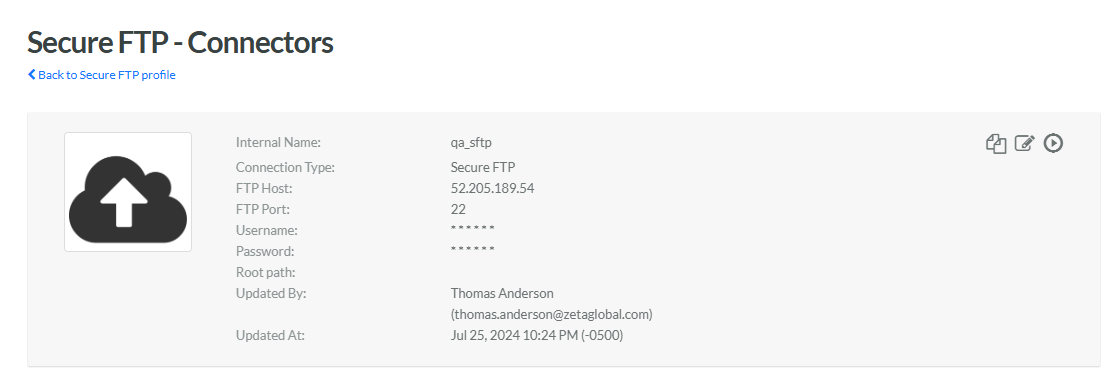
Example SFTP Connection Profile:
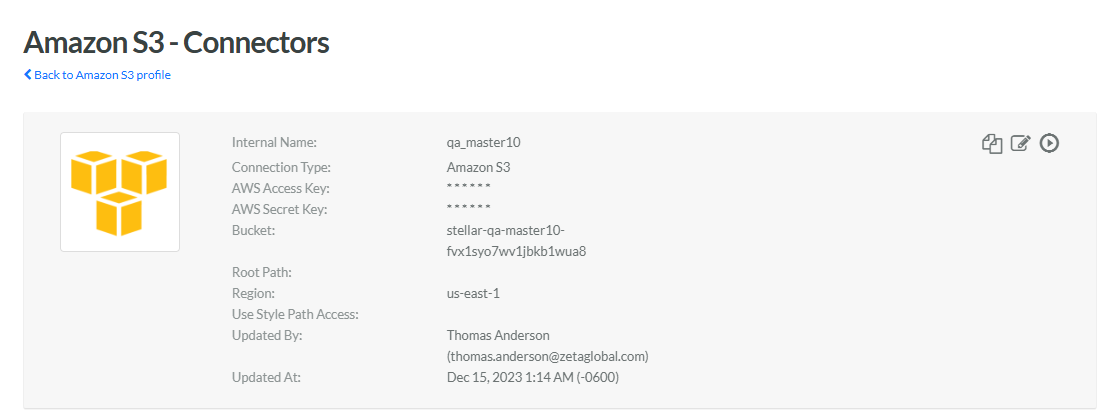
Example Amazon S3 Connection Profile:
Configure Program Settings
Once the Connection Profile is created as described above, you next need to configure several Program Settings related to this integration:
-
Export Connection Profile: From the Value drop-down menu, select the Connection Profile you created above.
-
Export Path: In the Value field, enter the file path to the desired location on the server where you want to drop the Segment export file. If not specified, the platform will default to the root directory specified in the Connection Profile.
-
Export File Prefix: In the Value field, enter a prefix that the platform will prepend to every Segment file name. This prefix is typically used to identify where the file is coming from. If not specified, the platform will default to using "Loy" as the export file prefix.
For more information, see Program Setting Category - Cheetah Digital Segment Export.
Export a Segment to Cheetah Digital
Once the above steps are completed you can create Segments in Loyalty, and export the lists of selected Members to Cheetah Digital.
For more information on creating Segments, see Create a Segment.
The platform offers two options for exporting a Segment to Cheetah Digital:
-
Manually export the Segment immediately. See Manually Export the Members in a Segment for more information.
-
Schedule the Segment to export once in the future, or on a recurring frequency. See Schedule a Segment Export to Cheetah Digital for more information.
Segment File Format
The Segment export file for the integration with Cheetah Digital contains the following columns:
-
member_id: Internal ID assigned by the Loyalty platform
-
first_name: The Member's first name.
-
last_name: The Member's last name.
-
email: The Member's email address.
-
integration_id: A client-supplied Member identifier.
-
is_holdout (only if Holdout Groups have been enabled for this Segment): A True / False flag indicating if this Member has been assigned to the Holdout Group.
Testing in Cheetah Digital
For more information on the steps required to set up the integration on the Cheetah Digital side, please see the Cheetah Digital Setup Guide for Loyalty Segment Export.
After creating, publishing, and exporting the Segment from Loyalty, and confirming the platform is exporting Segment data to the expected location by inspecting the SFTP / Amazon S3 account, the best practice recommendation is to verify the Segment import into Cheetah Digital:
-
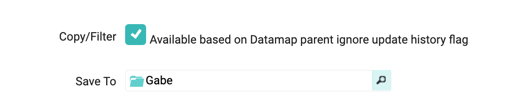
Within Cheetah Digital, create an Import Template using a Data Map, and an SFTP/S3 Profile to import the Loyalty Segment file from the SFTP server or Amazon S3 bucket. Check Copy/Filter and set the Save To Folder.
Note: The recommended best practice is to include an identifier in the file name, such as "LOYSEG" for ease of search later.
-
Execute the Import Template and check that the Member data from the Segment has been imported properly into the destination table.
-
The Cheetah Digital platform automatically creates a Filter containing all the records in the import file. Run a count on this Filter to ensure the count is accurate.
